Body
1. Open Microsoft Teams in the app or in a web browser.
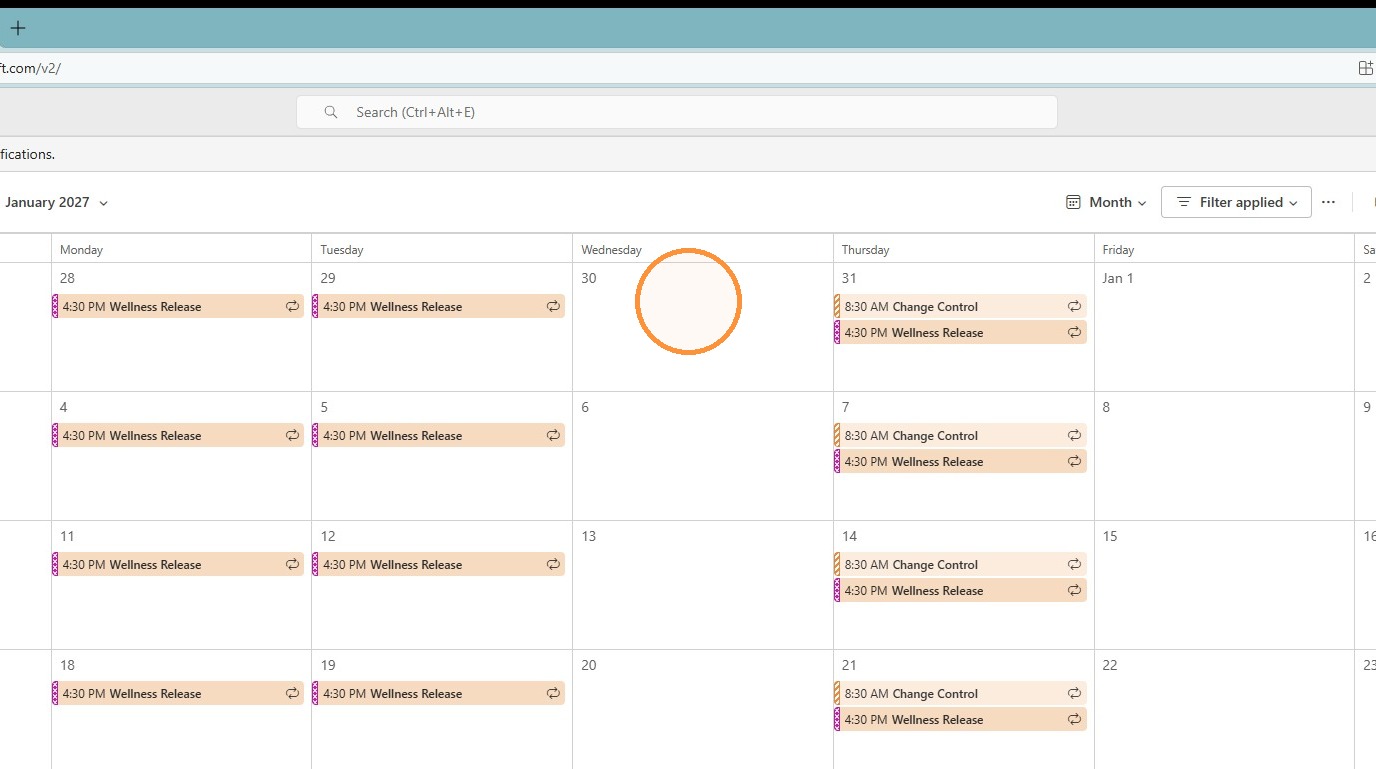
2. Select the desired day in the calendar.
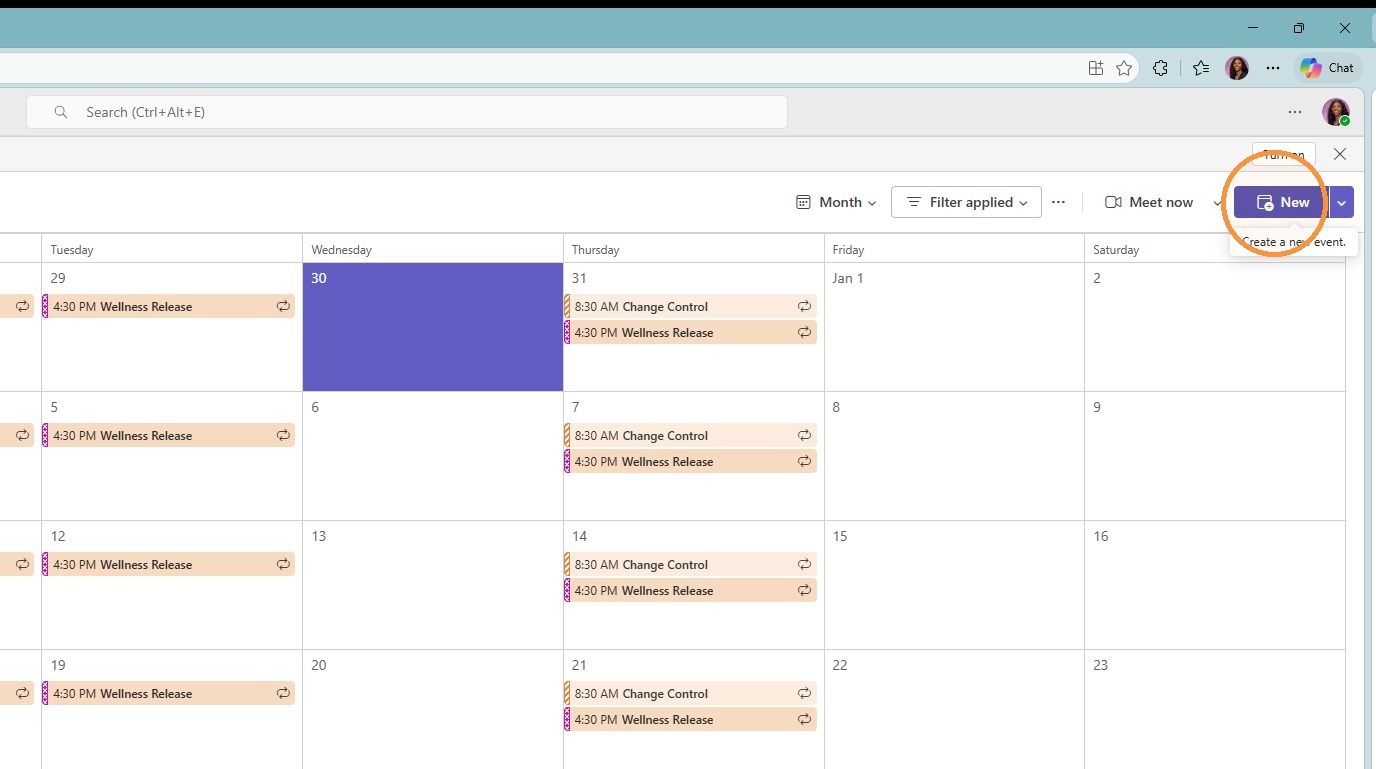
3. Click "New" in the top right corner to create an event.
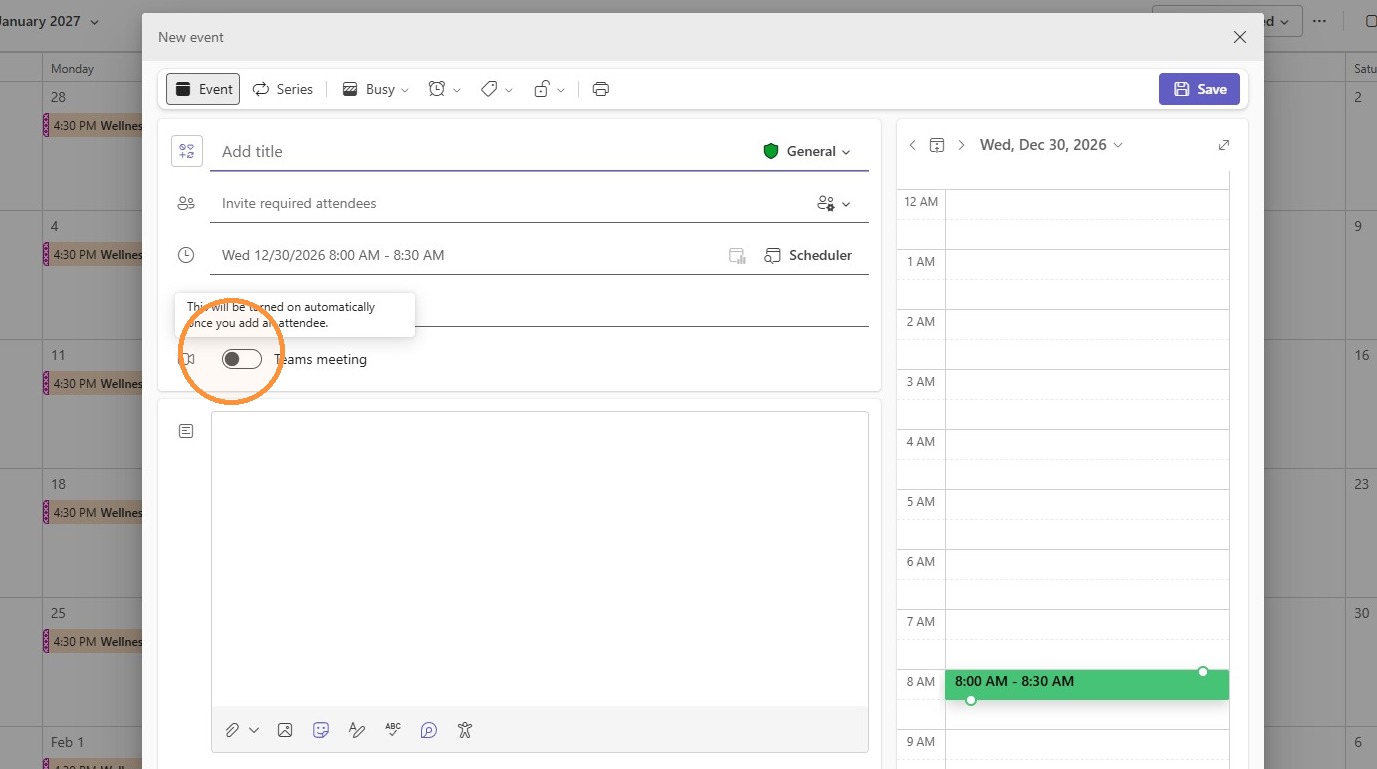
4. Select desired meeting time and click "Teams Meeting".
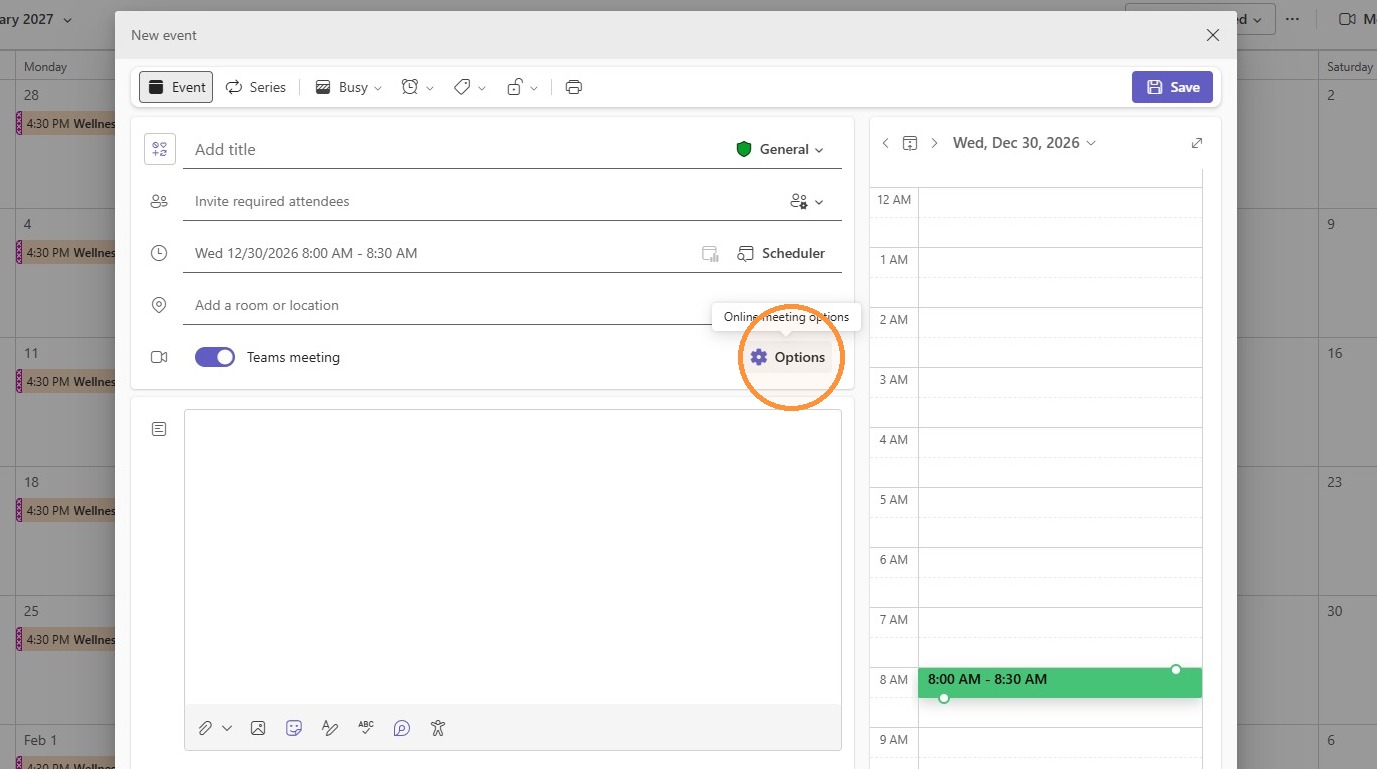
5. Click "Options".
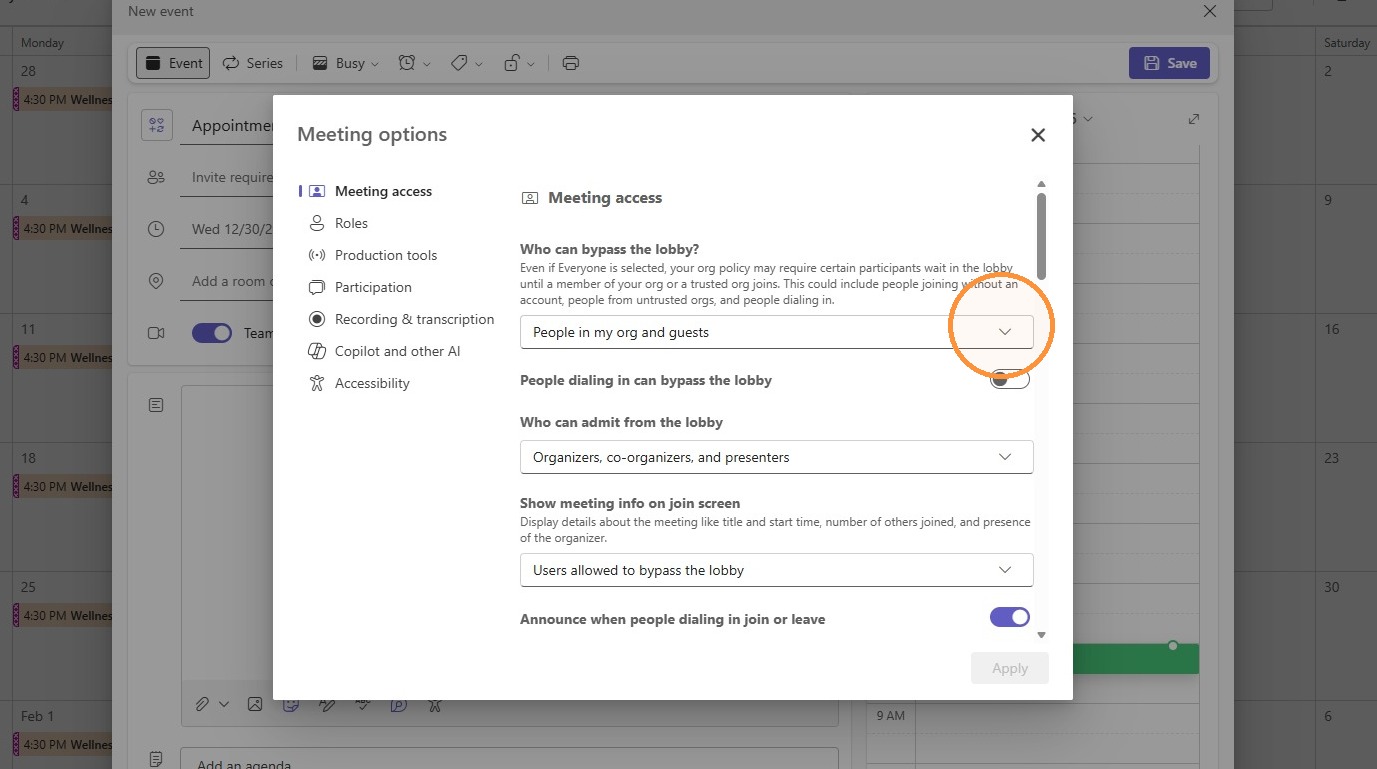
6. Open the "Who can bypass the lobby" drop down.
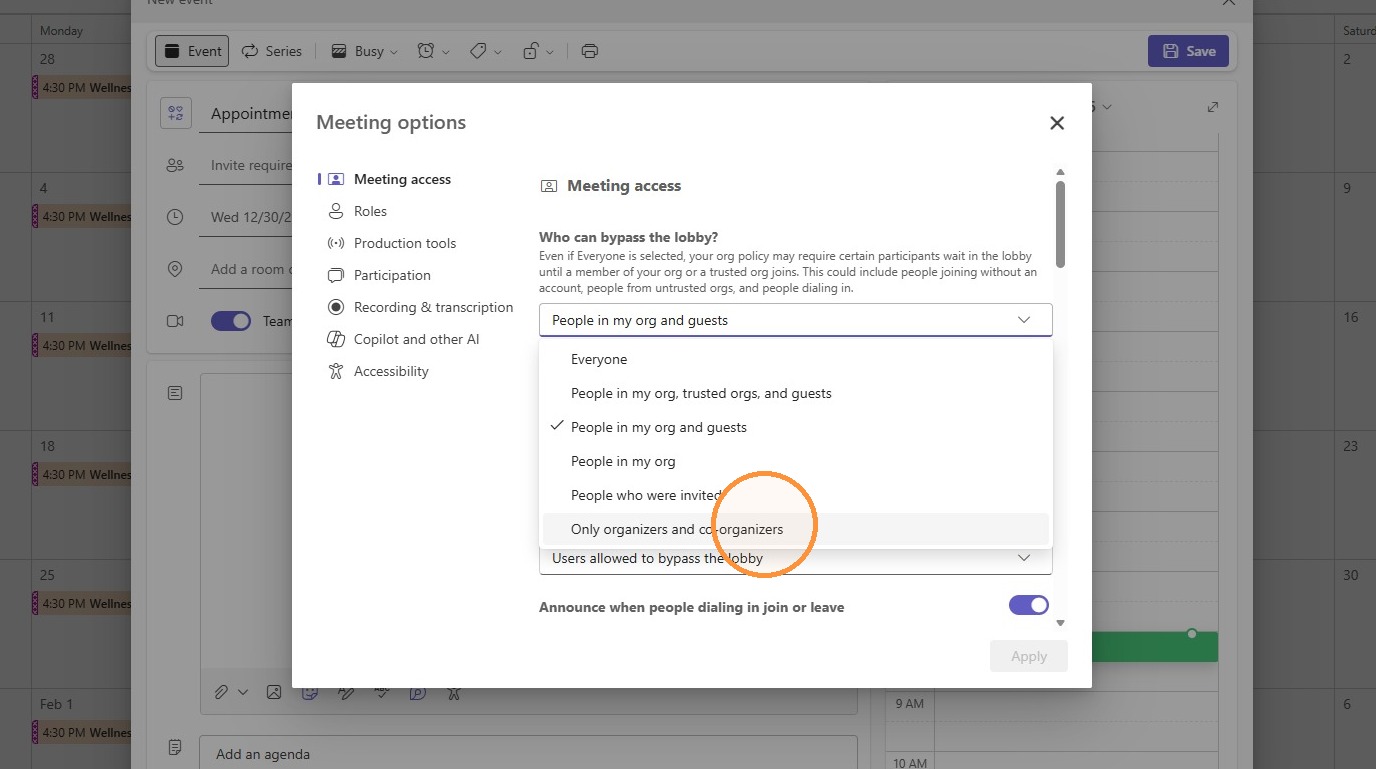
7. Select Only organizers and co-organizers. This will prevent any guest other than the creator of the appointment and those named as "co-organizers" from starting the meeting.
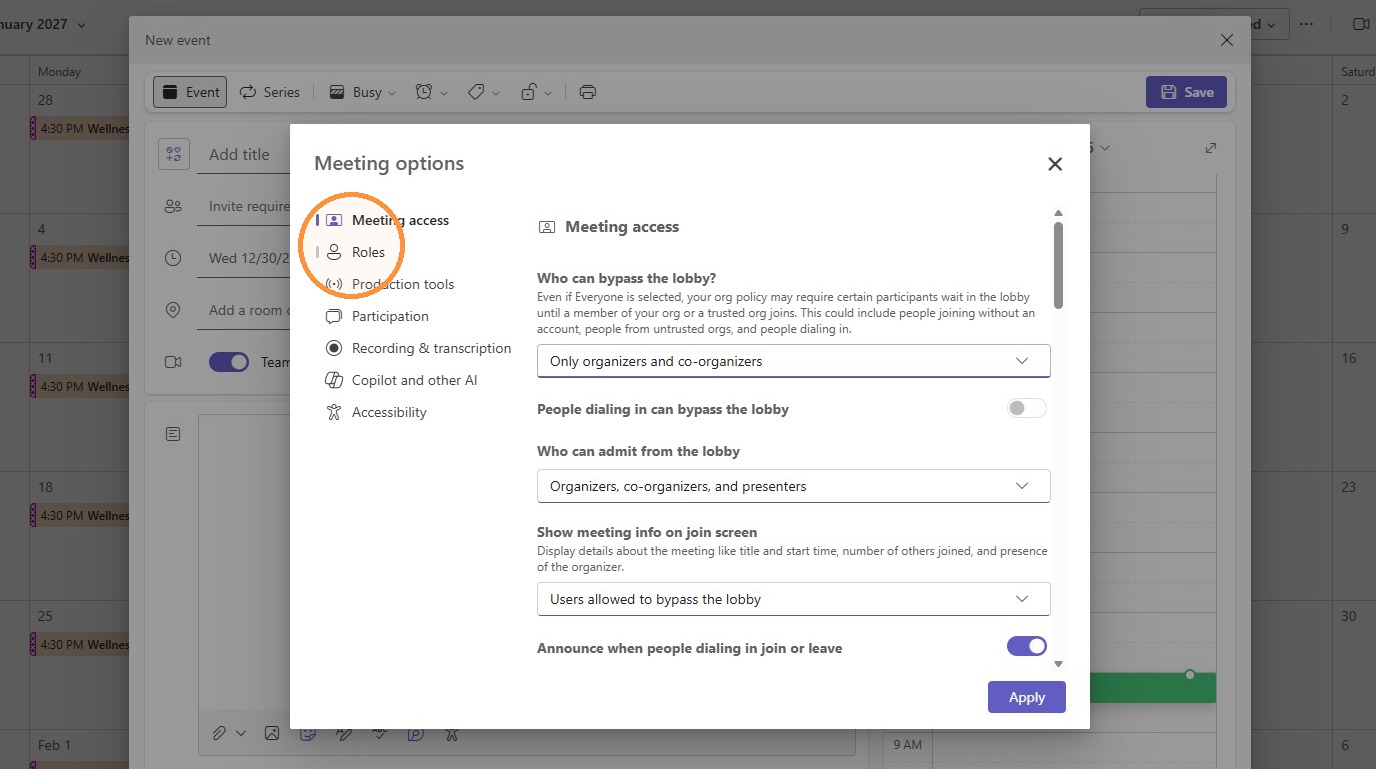
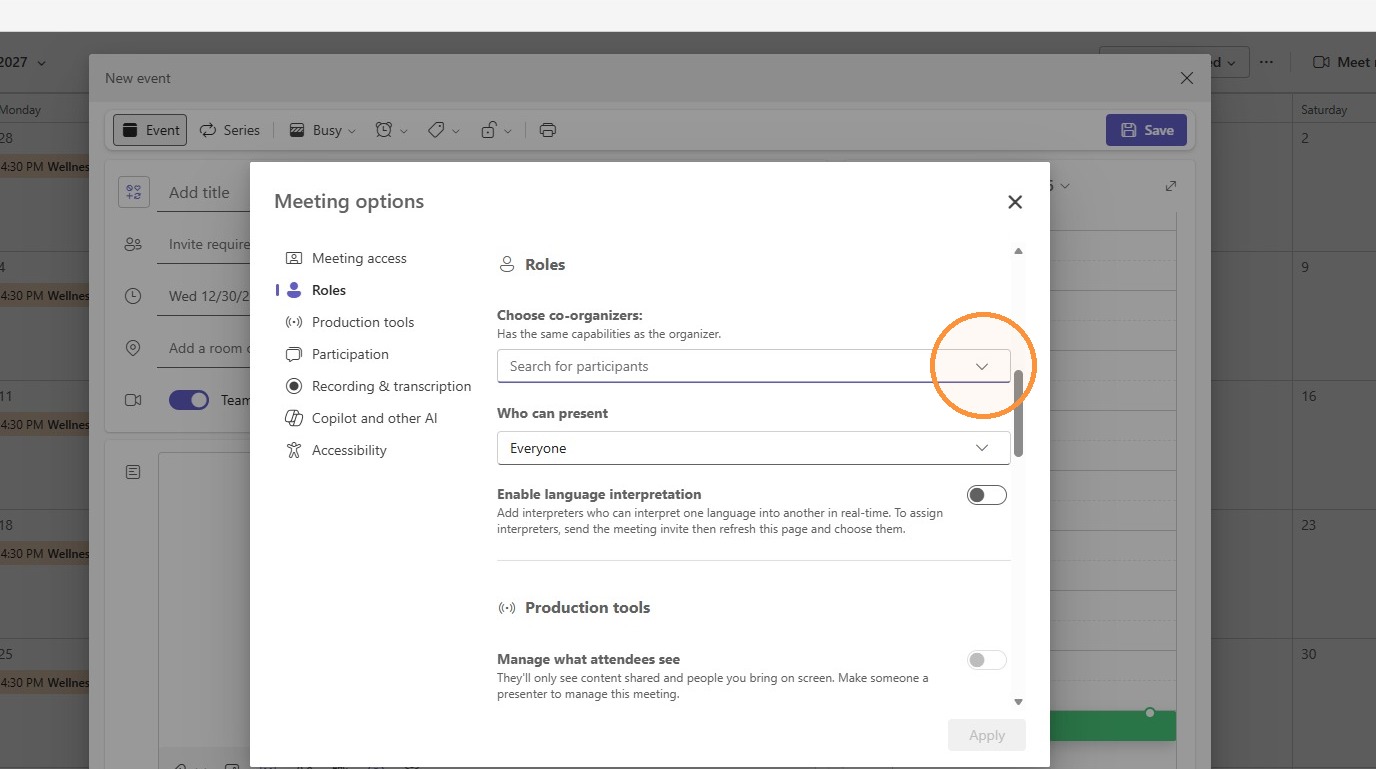
8. Next, click "Roles" on the left hand side.
9. Click the Choose co-organizers field. Here, you are able to assign co-organizers to the meeting. The co-organizer will be the host of the meeting and able to bypass the lobby and start the meeting.
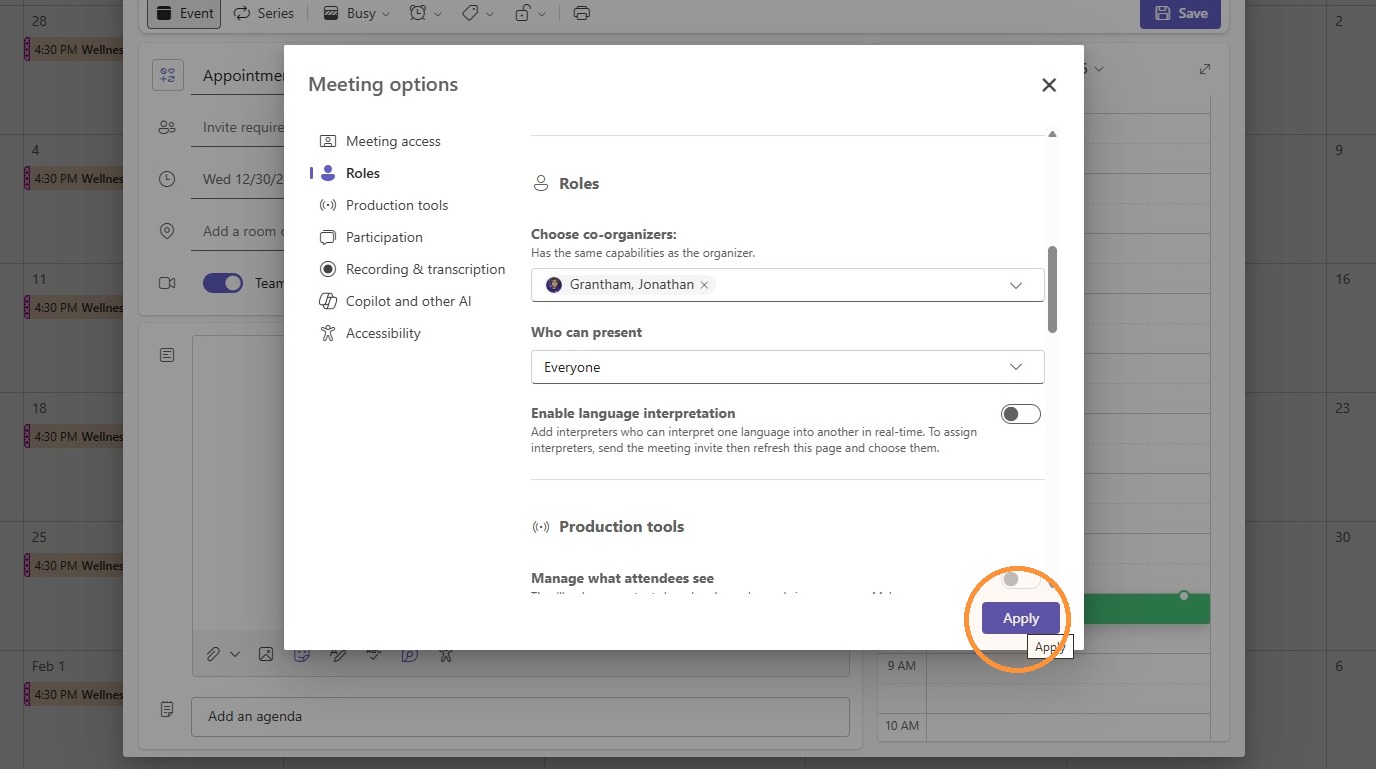
10. Once a co-organizer is selected, click "Apply" to save the meeting settings.
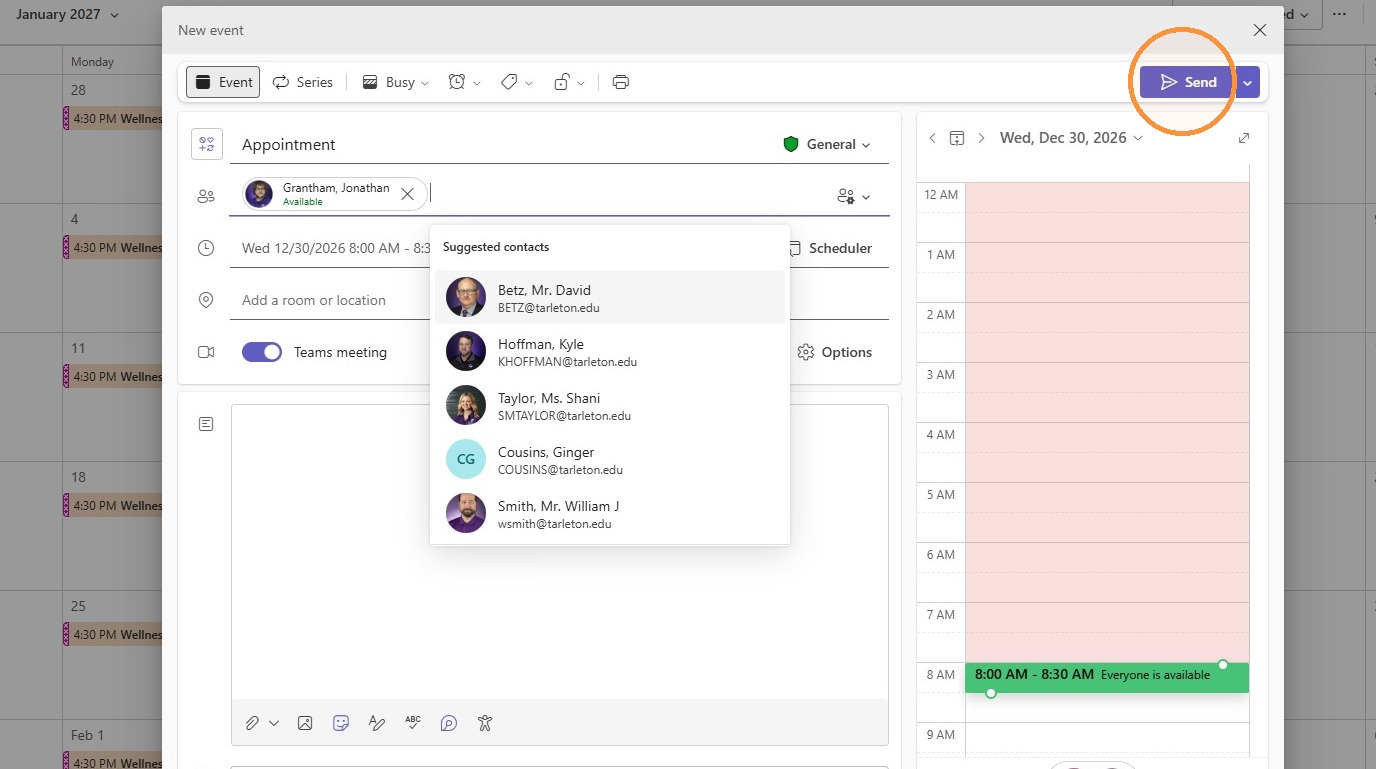
11. Once saved, selected co-organizer will automatically be invited to the meeting. Click the attendee field to invite other guests to the meeting.
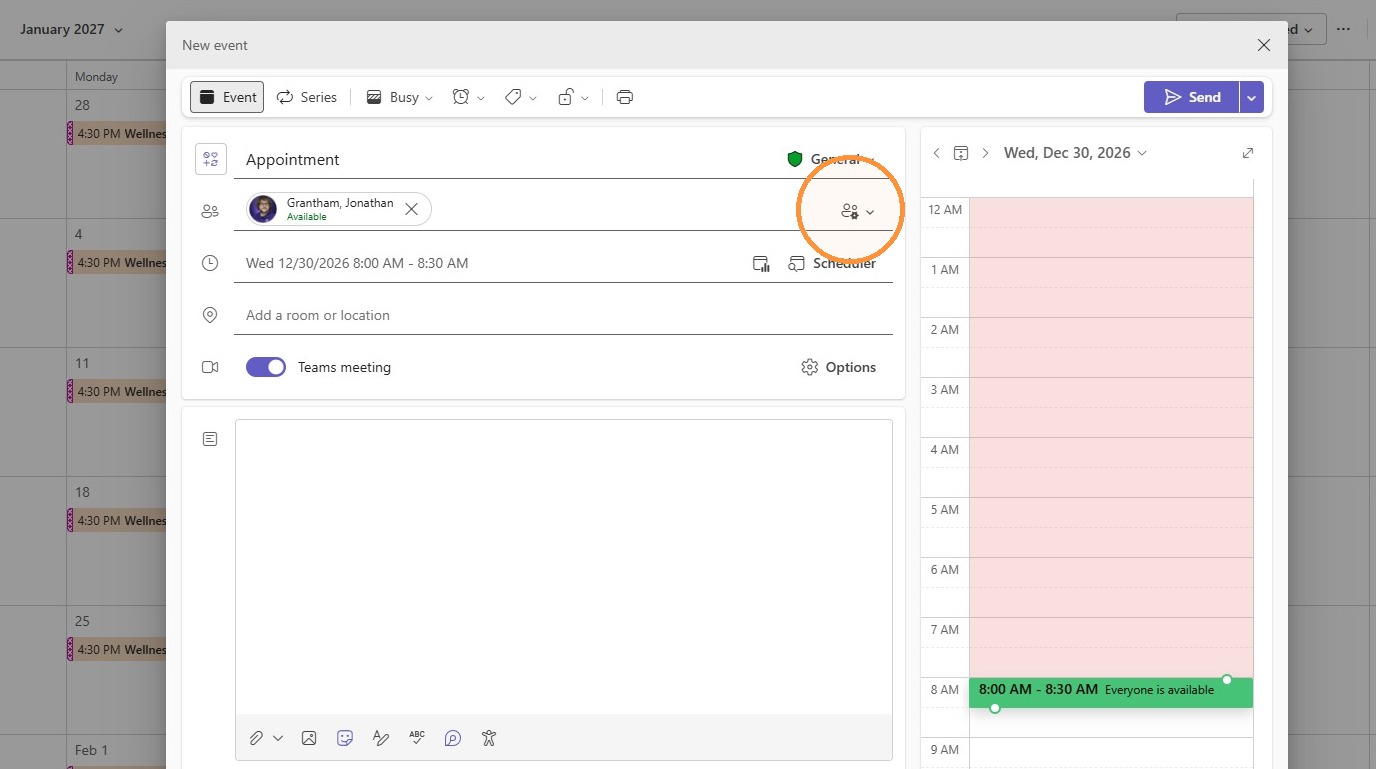
12. Once all desired persons have been added, click "Send" to invite them to the meeting. The appointment will show up on the calendar of all the invitees. As organizer, the meeting will be on your calendar, but you will not have to be in attendance for the meeting to be started.